⚡ Quick start
What to download, in the order Lovense recommends
Both are free on lovense.com. The Cam Extension runs in Chrome or Microsoft Edge. Stream Master is Lovense's all-in-one streaming app for Windows 10/11 and macOS 10.15 or later.
0 of 4 steps done
Tips not reaching the toy? Troubleshooting
Need a toy for streaming? Three picks for cam models
The Lovense Browser Extension is one of the most useful free tools Lovense offers, and one of the least used. When it works, tips become vibrations in real time and viewers see a direct link between their tip and your reaction. When it's set up wrong, it breaks, and that's frustrating mid-stream. This guide walks through each step so it doesn't.
What is the Lovense Browser Extension?
The Lovense Browser Extension is a free add-on for Chrome and Microsoft Edge that creates a bridge between your cam platform and your Lovense toy. It works by monitoring tip events on supported cam sites and sending vibration commands to your Lovense toy whenever a qualifying tip is received.
Here is the core flow: a viewer tips on Chaturbate → the extension detects the tip event → it sends a command to the Lovense Connect app running on your computer → Connect sends a Bluetooth signal to your toy → your toy vibrates. The whole chain takes a moment.
📱 Nothing for viewers to set up
Viewers do not install anything. They simply tip as they normally would. The extension handles everything on your side, and that ease is a big reason viewers tip toys at all.
⚙️ Custom tip levels
You set which tip amounts trigger which vibration intensities and patterns. Low tips might trigger a 3-second gentle buzz. High tips could trigger a long, powerful pulse. You can configure as many tip levels as you like, from minimum tip to premium experiences.
🎮 Real-time control
Besides tip-triggered vibrations, the extension supports "Lovense Control", a paid feature on some platforms that lets a viewer control your toy's intensity directly for a set time, through the platform's tip menu.
📺 OBS Integration
The companion OBS Toolset displays a visual overlay on your stream showing toy activity, tip reactions, and vibration status. Viewers see what their tips are doing as it happens, which streamers say encourages repeat tipping.
🔒 How it connects
The extension talks to Lovense Connect on your own computer (localhost), and the cam site handles your login, not Lovense.
🌐 Works across platforms
A single installation works across all supported cam platforms. Switch from Chaturbate to Stripchat to Bonga without reinstalling. The extension auto-detects which platform you are broadcasting on and applies the appropriate integration settings.
Which toy for streaming with the extension?
The extension works with every Lovense toy. These are the three picks from the guide for cam models:
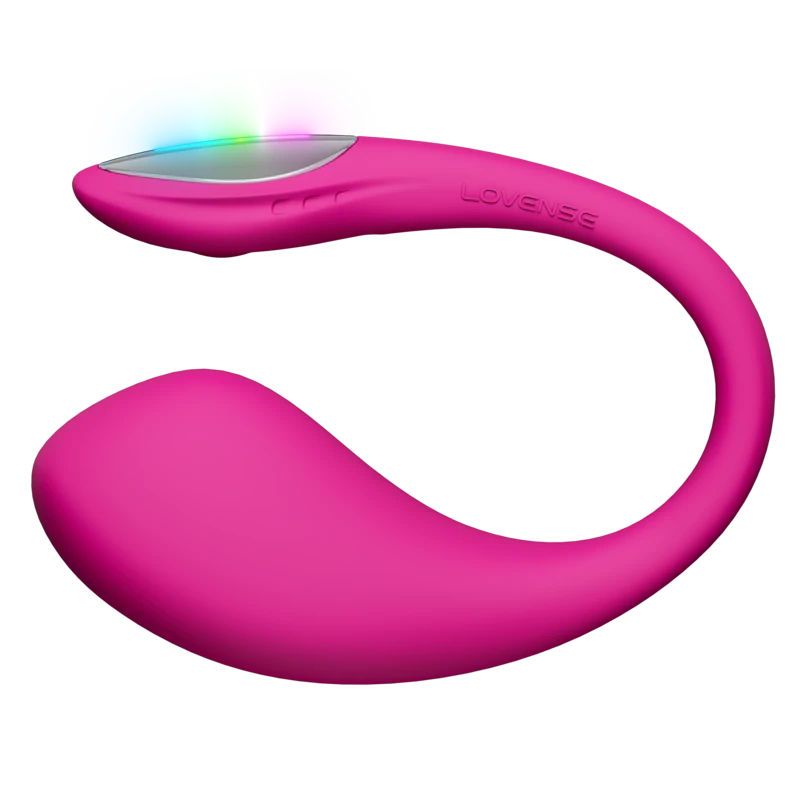
Lush 4
The usual cam choice: an LED tail that shows on camera and up to about 5.8 hours of battery.
See price at Lovense Read the review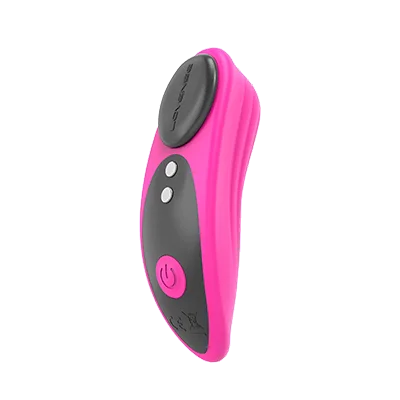
Ferri
Fully hidden under underwear, and fairly quiet, though louder than the Lush 4.
See price at Lovense Read the review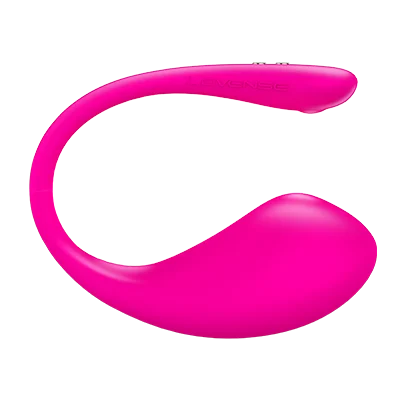
Lush 3
The same Chaturbate integration as the Lush 4 for $10 less, without the LED tail.
See price at Lovense Read the reviewHow do I install the Lovense extension on Chrome?
Short answer: install Lovense Connect on your computer and pair your toy, add the Lovense Browser Extension from the Chrome Web Store, allow it to reach localhost, then check that your toy shows a green status before setting your tip levels.
Chrome and Microsoft Edge are the two browsers Lovense supports, and most cam guides use Chrome. Follow these steps in order for the smoothest setup.
-
Step 1: install Lovense Connect (desktop app)
Before touching the browser, download and install the Lovense Connect desktop application from Lovense's official Cam Extension page. This app is what actually communicates with your toy via Bluetooth. The browser extension can't reach your toy directly; it works through Connect. Install it, launch it, and leave it running in the background whenever you stream.
-
Step 2: pair your toy in Connect
Turn on your Lovense toy and open Lovense Connect. Click the "+" button to add a new toy, and follow the on-screen Bluetooth pairing instructions. Wait until the toy shows a green "Connected" status in the Connect interface. Do not proceed until the toy is confirmed connected here.
-
Step 3: open the Chrome Web Store
In Chrome, navigate to the Chrome Web Store and search for "Lovense Browser Extension." Check that the publisher is Lovense. Click "Add to Chrome" and confirm the permissions prompt. The extension icon (a pink heart) will appear in your browser toolbar.
-
Step 4: allow the local connection
Click the Lovense extension icon in your toolbar. If it asks to connect to the Connect app on your computer (localhost), click "Allow": that's how it talks to Connect. If nothing happens, check Chrome Settings → Extensions → Lovense → Details and make sure the extension is enabled and allowed on your cam site.
-
Step 5: check for the green status
Click the extension icon. You should see your connected toy listed with a green dot. If you see a red "Not Connected" status, Lovense Connect is either not running or the toy is not paired. Return to Connect, verify the toy connection, then click "Refresh" in the extension popup.
-
Step 6: set your tip levels
Inside the extension popup, navigate to "Tip Settings" or open the full configuration panel. Set your tip level thresholds: for example, 10 tokens = 3-second low vibration, 50 tokens = 10-second medium vibration, 100 tokens = 20-second high vibration. You can also enable "Lovense Control" mode for premium interactive sessions. Save your settings.
Tip: pin the extension
Click the puzzle piece icon in Chrome's toolbar, find the Lovense extension, and click the pin icon to keep it always visible. This lets you quickly check connection status without hunting through the extensions menu. A green icon means connected; gray means disconnected from Connect.
Can I use the Lovense extension on Firefox?
Short answer: not at the moment. Lovense offers the Cam Extension for Chrome and Microsoft Edge only.
Update, 24 September 2026: Lovense's official download page now offers the Cam Extension for Chrome and Microsoft Edge only, and Firefox Add-ons lists no Lovense extension. If you stream from Firefox, switch to Chrome or Edge, or use Lovense Stream Master, the all-in-one app Lovense recommends to beginners.
Which cam sites does the Lovense extension work with?
Short answer: Chaturbate, Stripchat, Bonga Cams, MyFreeCams and CamSoda out of the box. Other platforms can use Lovense's generic URL integration.
The extension supports five major cam platforms out of the box. Here is what you need to know for each platform, including platform-specific quirks.
🟠 Chaturbate
The most used integration. Log into your Chaturbate broadcaster account, start a broadcast, and the extension automatically activates. In your Chaturbate tip menu, you will see a new "Lovense Control" option you can enable for interactive sessions. Tip vibrations work automatically with no additional configuration on the site side.
🔵 Stripchat
Go to your Stripchat model dashboard, then Settings → Connected Apps → Lovense. Click "Connect" to authorize the integration. After authorization, return to your broadcast room and the extension will detect tips in real time. Stripchat also supports a "Vibrate on Goal" feature which you configure in the extension settings.
🟣 Bonga Cams
Similar to Stripchat: go to your Bonga model profile settings, find the Lovense integration section, and enable it. The extension will then automatically detect Bonga token tips and convert them to vibration commands. Bonga's token-to-vibration mapping uses the same thresholds you set in the extension.
🟢 MyFreeCams
The MyFreeCams integration requires you to enable "Lovense Toy" in your MFC model profile settings. Once enabled, viewers will see a toy indicator on your profile and can interact through tip notes. MFC's Lovense support is older and uses a different API; ensure you are on the latest extension version for best compatibility.
🔴 CamSoda
CamSoda has built-in Lovense support accessed through the broadcaster dashboard under "Interactive Toys." Enable it there, and the extension will sync automatically. CamSoda lets viewers find models with interactive toys, so the integration can help people find you.
⚫ Other Platforms
For platforms not on this list, Lovense offers a "Generic URL" integration that lets you copy a webhook URL into the platform's tip notification system. Check Lovense's official help center for the most up-to-date list of supported platforms, as new integrations are added regularly.
How do I add the Lovense overlay to OBS?
Short answer: copy the browser source URL from the OBS Toolset section of Lovense Connect, add it to your OBS scene as a new Browser source, position it, then trigger a test vibration before going live.
The Lovense OBS Toolset adds a visual overlay to your OBS stream that shows viewers real-time toy activity, tip reactions, and intensity levels. Viewers can see their tips having an immediate effect, which streamers say keeps them tipping. Setup takes a few minutes.
-
Step 1: open Lovense Connect and find the OBS URL
In Lovense Connect on your desktop, navigate to the "OBS Toolset" section (usually under Settings or Tools). You'll see a browser source URL pointing to your own computer (it starts with
http://127.0.0.1); copy the whole URL. This is the local address of the overlay that OBS will display. -
Step 2: open OBS Studio
Launch OBS Studio on your computer. In your stream scene, click the "+" button in the Sources panel at the bottom of the OBS window. Select "Browser" from the source type list.
-
Step 3: create a new browser source
Name the source something memorable like "Lovense Overlay." In the URL field, paste the browser source URL you copied from Lovense Connect. Set the width and height to match your stream canvas (typically 1920x1080 for 1080p streams). Check the "Refresh browser when scene becomes active" box.
-
Step 4: position and size the overlay
Click OK to create the source. You will now see the Lovense overlay appear in your OBS preview. Drag it where you want it, usually a corner. Right-click the source and use "Transform" to resize it. Many creators place it in the bottom-left or bottom-right corner at about 200-300px wide.
-
Step 5: customise how the overlay looks
Back in Lovense Connect, the OBS Toolset section lets you choose overlay themes, colors, which information to display (tip counter, intensity bar, toy name, etc.), and animation styles for vibration events. Choose a style that complements your stream's visual theme without being distracting.
-
Step 6: test before going live
Start OBS and activate your stream scene. In Lovense Connect, use the manual control to trigger a vibration on your toy. You should see the overlay animate in real-time in your OBS preview. Verify the overlay is visible and updating before going live. Check that the toy responds too, since several OBS browser sources can sometimes interfere with each other.
OBS performance tip
The Lovense browser source adds little CPU load, but if you run a complex scene with many sources, consider setting the overlay's frame rate to 30fps instead of 60fps in the browser source settings. This reduces CPU usage with no visible quality difference since the overlay only animates during tip events.
Why isn't my Lovense extension working?
Short answer: most failures come from Lovense Connect not running or the toy not being paired, the cam site integration not being authorized, or Chrome blocking the extension's localhost connection.
The Lovense extension is reliable when set up correctly, but a handful of issues come up repeatedly in community troubleshooting threads. Here are the most common problems and their solutions.
❌ Why does the extension show "Not Connected"?
Cause: Lovense Connect is not running, or is running but the toy is not paired.
Fix: Open Lovense Connect, verify the toy shows a green "Connected" status. If not, re-pair the toy by clicking "+" in Connect. Once the toy is connected in Connect, click "Refresh" in the extension popup. The status should switch to green within seconds.
❌ Why aren't tips triggering vibrations?
Cause: The extension is not detecting tip events, or the cam site integration is not authorized.
Fix: Verify you are logged in as a broadcaster on the cam site (not as a viewer). On Stripchat and Bonga, re-check the app authorization in your model settings. On Chaturbate, try refreshing the broadcast page with the extension active. Check that you've set tip levels, because with none configured no tip triggers a vibration.
❌ Why isn't the OBS overlay updating?
Cause: The browser source URL has changed (Lovense Connect generates a new URL after some updates) or the browser source is using a cached version.
Fix: In Lovense Connect, copy the OBS URL again, since its port or path may have changed. Update your OBS browser source URL accordingly. If the URL is correct, right-click the browser source in OBS and click "Refresh" to clear the cache.
❌ Why does the extension disconnect mid-stream?
Cause: Your OS is putting Lovense Connect to sleep to save power, or the Bluetooth connection to the toy has dropped.
Fix: In Windows power settings, set the computer never to sleep while plugged in. On a Mac, in System Settings → Battery (or Energy), turn on "Prevent automatic sleeping when the display is off". Also keep the toy in range and fully charged, since a low battery makes Bluetooth less stable.
❌ What if Chrome blocks the localhost connection?
Cause: a Chrome update changed how extensions reach localhost, or another extension is blocking the connection.
Fix: update Chrome and the Lovense extension, and reinstall the extension if needed. If it continues, turn off your other extensions for a moment to find the conflict; ad blockers and privacy extensions are frequent culprits. Don't disable Chrome's security settings to make it work.
❌ Why does my toy keep vibrating non-stop?
Cause: A tip command was sent but the stop command was not received, often due to a brief network interruption.
Fix: Click the "Stop All" button in the Lovense Connect interface. If the toy continues, disconnect it in Connect and reconnect it. This clears any pending commands. To prevent this in the future, keep your internet connection stable and avoid switching networks during streams.
Need a Lovense toy to start?
The extension works with every Lovense toy. The official store ships free worldwide in discreet packaging.
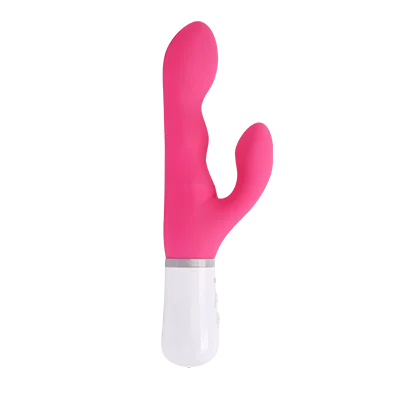
Choosing a toy for streaming?
The three I'd start with
Every Lovense toy works with the extension. Prices and scores come from my full reviews.
Frequently Asked Questions
Related Guides
📖 Complete beginner's guide
New to Lovense? Start here. Everything you need to know about choosing your first toy, the app, and getting connected.
💕 Long-Distance Intimacy Tips
Toys for long-distance couples, setup tips and date ideas for staying close while apart.
🔧 Lovense troubleshooting guide
Fixes for Bluetooth drops, app crashes, connection failures, and every other common Lovense technical problem.
Not sure which Lovense toy is right for you?
Take the 60-Second Quiz
5 quick questions. Instant personalized recommendation.
Find My Perfect Lovense Toy →
I started Pleasure Vibe Reviews after going long-distance with my partner — Sweden to Australia, 15,000km apart. Lovense became essential to our relationship, and I couldn't find reviews that actually answered the questions I had. I research every product thoroughly: manufacturer specs, verified buyer reviews on Reddit, and community feedback — including the things brands don't put in their marketing copy. More about me →